Checkpoints
Agents make mistakes. They overwrite working code, misunderstand instructions, or get stuck in loops. In a traditional workflow, an error often means losing all progress and starting over.
Hankweave gives you a different option: time travel.
What are Checkpoints?
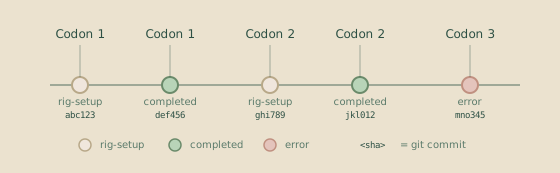
A checkpoint is a Git commit that captures the exact state of tracked files at a specific moment. At key moments during a hank’s run—a rig setup completing, a codon finishing, or an error occurring—Hankweave commits a checkpoint.
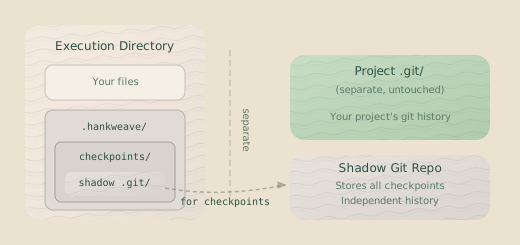
These checkpoints live in a shadow git repository: a dedicated checkpoint directory inside .hankweave/checkpoints/ that is completely separate from your project’s own Git history. Your project’s version control stays untouched.
Key Insight: Checkpoints aren’t just for rollback. They’re a complete audit trail. Every file modification, every intermediate state, and every decision is preserved for later inspection.
How Checkpoints Work
When Hankweave starts, it initializes a shadow Git repository in the execution directory (the isolated workspace where your hank runs). This repo has its own branches, commits, and history—completely independent of your project.
What Gets Checkpointed
Checkpoints capture files matching your checkpointedFiles patterns. When a codon specifies patterns like ["src/**/*.ts", "docs/*.md"], those files are staged and committed when a checkpoint is created.
Some paths are always excluded: the .hankweavecheckpoints/ directory, the read_only_data_source/ directory (your input data), and any files matching your project’s .gitignore rules. This means checkpoints capture only your work output, not your source data or version control metadata.
Checkpoint Types
Hankweave creates checkpoints at specific moments in the execution lifecycle:
| Type | When Created | Purpose |
|---|---|---|
| rig-setup | After rig operations complete | Restore to post-setup, pre-agent state |
| completed | After a codon successfully completes | Restore to a known-good state |
| error | After a codon fails | Debug and analyze what went wrong |
| skipped | After a user skips a codon | Preserve state during manual intervention |
| exit | At abnormal server shutdown | Preserve state if the server stops unexpectedly |
Commit Message Format
Each checkpoint commit has a structured message that tells you exactly what happened:
{status}:{codonId} [run:{runId}] {codonName}

Codon: {codonName}
Status: {status}
Timestamp: {timestamp}
Duration: {duration}ms
For example:
completed:build-schema [run:20240115-abc123] Build Zod Schemas

Codon: Build Zod Schemas
Status: completed
Timestamp: 2024-01-15T14:23:30.000Z
Duration: 45000ms
Branches Per Run
Each hank run gets its own Git branch in the shadow repository, named after the run ID. Rolling back doesn’t destroy history—it just moves to a different point in it.
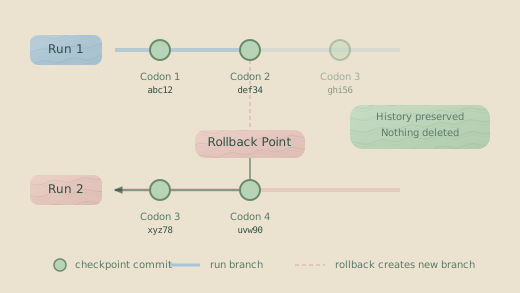
When you roll back and retry, Hankweave creates a new branch from the rollback point. The old branch stays intact, so you can always go back to see what a previous attempt did.
Historical Rollback: Commits from old, abandoned runs are preserved. If you rolled back and tried a different approach three times, all three timelines remain accessible in the Git history.
Using Checkpoints
With a conceptual understanding of checkpoints, let’s look at how to use them for rollback and debugging.
Accessing the Shadow Repository
To inspect checkpoints directly with Git commands, you first need to navigate to your run’s execution directory and configure your shell to use the shadow repository.
# Navigate to the execution directory for your run
cd ~/.hankweave-executions/{your-execution}/

# Set environment variables to point git to the shadow repository
export GIT_DIR=.hankweave/checkpoints/.hankweavecheckpoints
export GIT_WORK_TREE=agentRoot
All git commands in the following sections assume you have run these commands first.
Listing Available Checkpoints
While checkpoints can be queried programmatically via the WebSocket protocol, the most direct way to explore the history is with git log.
# View all commits across all branches to see the complete checkpoint history
git log --oneline --all

# Example output:
# a1b2c3d (run-20240115-def) completed:codon-3 [run:20240115-def] Final Processing
# e4f5g6h completed:codon-2 [run:20240115-abc] Schema Generation
# h7i8j9k rig-setup:codon-2 [run:20240115-abc] Schema Generation
# l0m1n2o completed:codon-1 [run:20240115-abc] Data Observation
Rolling Back
Rollback commands restore the file state to a specific checkpoint.
Roll back to last success:
rollback.toLastSuccessThis restores the state to the most recent completed checkpoint. Use this when something just broke and you want to retry the last failed step.
Roll back to a specific codon:
rollback.toCodon {codonId} {checkpointType}This restores the state to a specific codon’s checkpoint. checkpointType can be one of the literal types (rig-setup, completed, error) or one of two special aliases:
start: Resolves to the first available checkpoint for the codon (prefersrig-setup).end: Resolves to the last available checkpoint (preferscompleted,error, orskipped).
Roll back to a specific commit SHA:
rollback.toCheckpoint {sha}This provides precise control, letting you restore the state to an exact commit—even one from an old, abandoned timeline.
You can use a partial SHA (e.g., a1b2c3d instead of the full 40 characters).
Hankweave will find the matching commit across all branches.
What Happens During a Rollback
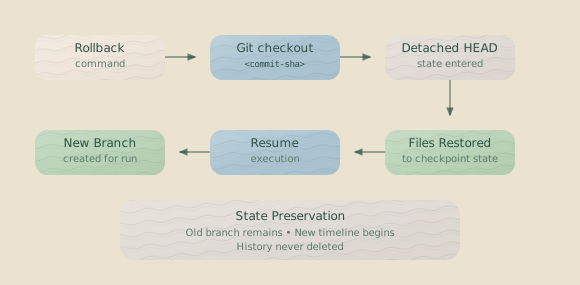
When you issue a rollback command, Hankweave performs a careful sequence of operations:
- Git checkout: Files in the working directory are restored to the state of the target checkpoint.
- Detached HEAD: The repository enters a “detached HEAD” state, preserving the old branch’s history.
- New branch creation: When execution resumes, a new branch is created from this point, starting a new timeline.
- State update: The state manager records the rollback event.
Detached HEAD Preserves History: Using git checkout to a detached HEAD
state (instead of git reset --hard) is intentional. It ensures the commit
history of the old branch remains accessible, so you never lose checkpoints
from previous timelines.
Tracked Files and Patterns
Checkpoints only capture files matching checkpointedFiles patterns, and these patterns accumulate as codons execute.
If codon 1 specifies checkpointedFiles: ["src/**/*.ts"] and codon 2 specifies checkpointedFiles: ["docs/**/*.md"], the checkpoint created after codon 2 will include both sets of patterns. All TypeScript files in src/ and all Markdown files in docs/ will be included in that checkpoint.
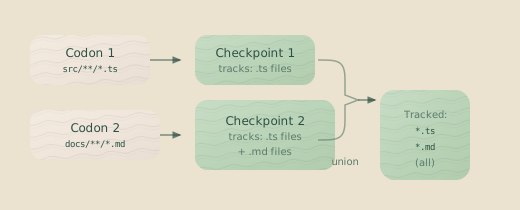
Patterns are resolved using the UnifiedFileResolver, which expands glob patterns (**/*.ts), respects .gitignore rules, always excludes .git/ and read_only_data_source/, and handles negation patterns (!node_modules/).
Checkpoint Storage
The checkpoint system stores everything under .hankweave/checkpoints/:
.hankweave/
├── checkpoints/
│   ├── .hankweavecheckpoints/   # Shadow git repository
│   └── .gitconfig               # Isolated git configuration
Why .hankweavecheckpoints? The checkpoint directory is named
.hankweavecheckpoints rather than .git to prevent Git from detecting it as
a submodule when you commit execution directories. This avoids
submodule-related warnings and keeps your project’s Git history clean.
The .gitconfig file isolates the shadow repo from your global user Git configuration:
[user]
  name = Hankweave Runtime
  email = froggie@southbridge.ai
[commit]
  gpgsign = false
This isolation ensures that creating a checkpoint won’t trigger GPG signing, use your personal email, or interact with your global Git hooks.
Debugging with Checkpoints
Checkpoints are your primary debugging tool. Because every key moment is captured, you can trace exactly what happened and when.
Comparing States
Use git diff to see what changed between any two checkpoints.
# Set up your environment to access the shadow repository first!

# Compare two checkpoints to see all file changes between them
git diff abc123 def456

# Compare a specific file between two checkpoints
git diff abc123 def456 -- src/schema/types.ts
Inspecting a Checkpoint
To see the exact state of files at a single point in time:
# Show the commit message and a summary of changes for a checkpoint
git show abc123

# List all files that existed at that checkpoint
git ls-tree --name-only abc123

# View the full content of a specific file at that checkpoint
git show abc123:src/schema/types.ts
Finding When Something Broke
Use git log to trace the history of changes:
# Find all checkpoints that modified a specific file
git log --all --follow -- src/schema/types.ts

# Find all commits related to a specific codon by searching the commit message
git log --all --grep="build-schema"
Common Mistakes
- Forgetting
checkpointedFiles: Checkpoints only capture files matching your patterns. If a codon creates or modifies files you haven’t tracked, those changes will be invisible to the checkpoint system and lost on rollback. Always verify your patterns cover your outputs. - Mistaking checkpoints for live backups: Checkpoints are snapshots taken at specific moments, not a continuous backup. If an agent deletes a file and the codon fails, that deletion is part of the
errorcheckpoint. To recover the file, you must roll back to an earlier, successful checkpoint.
Checkpoint Validation
The state manager validates checkpoint references to ensure consistency. It verifies that commits exist in the shadow repo, searches across all branches when looking up a SHA, and can identify “orphan” references to commits that don’t exist. If you see validation errors about missing checkpoints, the shadow Git repository was likely modified or corrupted outside of Hankweave.
Advanced: Checkpoint Internals
For those building tools or contributing to Hankweave, here’s how the checkpoint system works under the hood.
Commit Creation
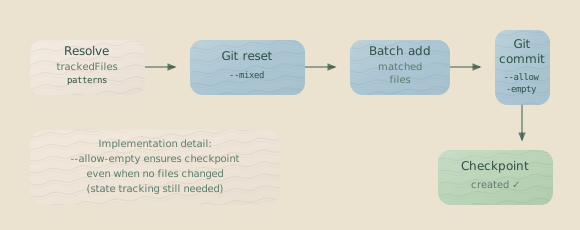
When creating a checkpoint, Hankweave follows this sequence:
- Pattern resolution:
checkpointedFilespatterns are expanded to a file list. - Index reset: The Git index is reset (
--mixedmode) to unstage everything while preserving the working directory. - Batch add: Resolved files are added to the index in batches to avoid command-line length limits.
- Commit: The changes are committed, using
--allow-emptyto ensure checkpoints are created even if no files changed.
Branch Management
The rollback process is designed to prevent history loss:
- SHA verification: Hankweave searches all branches for the target commit SHA.
- Checkout: It uses
checkout --forceto overwrite any local changes and restore the working directory. - Detached HEAD: The checkout action enters a detached HEAD state, pointing directly at the commit.
- New branch on continue: When execution resumes, a new branch is created from the detached HEAD, preserving the old branch’s timeline.
This design ensures every run’s timeline is permanently recorded and accessible.
Related Pages
- Codons — Learn how to configure
checkpointedFiles. - Loops — See how checkpoints work in iterative contexts.
- Debugging — Apply these concepts in a practical guide.
- Execution Flow — Understand when checkpoints are created in the lifecycle.
Next Steps
- If you’re running hanks: Learn how to apply these concepts in the Debugging guide.
- If you’re writing hanks: Review your codon configurations to ensure your
checkpointedFilespatterns capture all necessary outputs for effective rollback. See Codons. - If you’re building tools: You can build custom diffing, visualization, or analysis tools on top of the shadow repository using standard Git commands.