Debugging Hanks
When agentic systems break—and they will—you need to understand what happened and how to fix it. Hankweave is designed for this. Every tool call, file write, and decision is captured, allowing you to trace exactly what happened, roll back to any checkpoint, and try a different approach.
Who is this for? Anyone running hanks (Track 1). If a codon failed, the output looks wrong, or costs spiraled, this guide will help you figure out why and fix it.
The Debugging Mindset
Debugging hanks is different from debugging traditional code. You’re not stepping through instructions—you’re investigating what an autonomous agent did over minutes or hours.
Think of it like forensic analysis. You have a complete record of everything that happened; your job is to find where things went off track.
Hankweave gives you the tools you need:
- Complete event logs of every action the agent took.
- Git checkpoints at every significant state change.
- Structured failure information that tells you exactly what went wrong.
- Powerful rollback capabilities to rewind state and try a new approach.
Understanding Failures
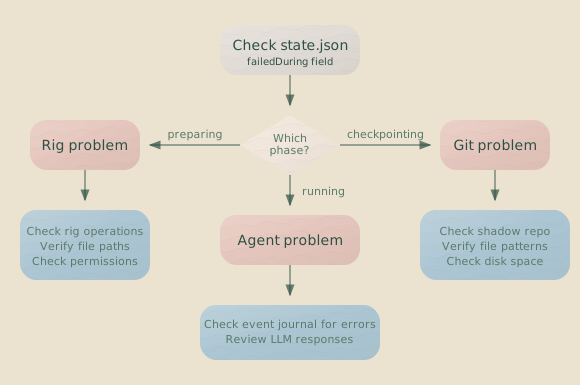
When a codon fails, Hankweave captures detailed information about the cause. Two fields tell you most of what you need to know: failedDuring (which phase) and failureReason (why).
The failedDuring Field
This field tells you which execution phase failed.
| Phase | What It Means |
|---|---|
preparing | Rig setup failed—a file copy or command failed. |
starting | Couldn’t spawn the agent process. |
initializing | The agent process started but never established a session. |
running | The agent was executing when something went wrong. |
completing-sentinels | The agent finished, but checkpoint creation failed. |
The failureReason Object
This object provides structured information about the failure:
{
  type: "timeout" | "rate-limit" | "api-error" | "sentinel-load-failure" | "unknown",
  retriable: boolean,  // Can you just try again?
  message?: string,    // Human-readable description
  sentinelRefs?: string[]  // Which sentinels failed (if applicable)
}
Error Severity Levels
Not all errors are equal. Hankweave categorizes them by severity:
| Severity | Impact | Action |
|---|---|---|
| Fatal | Server shuts down. | Check logs; likely a bug or corrupted state. |
| Codon | Current codon fails; server continues. | Investigate and retry or roll back. |
| Operation | A single operation failed. | Usually recoverable automatically by the agent. |
| Warning | Logged, but no action taken. | Review but may not need intervention. |
Exit Codes
The exitCode in the state file shows how the agent process ended. You’ll most often see 1 (general error) or 130 (user interruption).
| Code | Meaning |
|---|---|
0 | Clean exit (should not happen for failed codons) |
1 | General error |
-1 | Killed by a signal |
130 | User interrupted (Ctrl+C) |
Note: The state file stores a simple exitCode number. Events use a
richer exitStatus object with a type ("success", "error", "killed")
and a code for errors or signal for killed processes.
Where to Look
Here are the key places to find diagnostic information, in the order you should check them.
1. The State File
Your first stop should always be .hankweave/state.json. This file contains the current execution state.
{
  "runs": [
    {
      "runId": "run-1736978400000-abc123",
      "status": "failed",
      "codons": [
        {
          "codonId": "build-schema",
          "status": "completed",
          "finalCost": 0.023,
          "completionCheckpoint": "abc123"
        },
        {
          "codonId": "validate-output",
          "status": "failed",
          "failedDuring": "running",
          "failureReason": {
            "type": "timeout",
            "retriable": true,
            "message": "API request timed out after 30000ms"
          },
          "partialCost": 0.015
        }
      ]
    }
  ],
  "currentRunId": null,
  "executionPlan": [...]
}
Start with runs[0], which is the most recent run. Find any codon with status: "failed", check its failedDuring and failureReason, and note the partialCost (what you spent before it failed).
2. The Event Journal
For more detail, look at the event log in .hankweave/events/events.jsonl. It contains every event from the run.
{"type":"codon.started","timestamp":"2024-01-15T14:23:01Z","data":{"codonId":"build-schema"}}
{"type":"assistant.action","timestamp":"2024-01-15T14:23:05Z","data":{"action":"tool_use","toolName":"Read"}}
{"type":"file.updated","timestamp":"2024-01-15T14:23:10Z","data":{"path":"src/schema/types.ts"}}
{"type":"codon.completed","timestamp":"2024-01-15T14:25:30Z","data":{"codonId":"build-schema","success":true}}
You can use grep to quickly filter the events:
# Find all failed codons
grep '"success":false' .hankweave/events/events.jsonl

# Find all error events
grep '"type":"error"' .hankweave/events/events.jsonl

# Find all events for a specific codon
grep '"codonId":"build-schema"' .hankweave/events/events.jsonl
3. Agent Logs
For the deepest level of detail, each codon has its own log file in .hankweave/runs/{runId}/. The log’s name follows the pattern {codonId}-{modelName}.log.
.hankweave/runs/run-1736978400000-abc123/
├── build-schema-claude.log
├── validate-output-claude.log
└── ...
The log is a JSONL file containing the full conversation with the model provider.
{"type":"system","message":{"type":"init","sessionId":"sess_abc123"}}
{"type":"assistant","message":{"id":"msg_xyz","content":[...],"usage":{...}}}
{"type":"user","message":{"role":"user","content":[{"type":"tool_result",...}]}}
{"type":"result","result":"success","cost":0.023,"duration_ms":150000}
Look for a type: "result" with is_error: true to find the final outcome. Messages with model: "<synthetic>" indicate API errors like timeouts or rate limits. The sequence of tool calls can reveal where the agent went off track, and token usage patterns can show if the context window is filling up.
4. Git Checkpoints
Finally, Hankweave maintains a shadow git repository in .hankweave/checkpoints/ that captures every file state change.
# Set up your environment to run git commands against the shadow repo
export GIT_DIR=.hankweave/checkpoints/.hankweavecheckpoints
export GIT_WORK_TREE=agentRoot

# View checkpoint history
git log --oneline

# See what changed in a specific checkpoint
git show abc123

# Compare two checkpoints
git diff abc123 def456

# See the state of a file at a specific checkpoint
git show abc123:src/schema/types.ts
Each checkpoint’s commit message follows a consistent pattern: {status}:{codonId} [run:{runId}] {codonName}. For example: completed:build-schema [run:run-1736978400000] Build Schema. This makes it easy to find the state you’re looking for.
Common Failure Patterns
Most failures fall into a handful of categories. Here’s what to look for and how to fix them.
Context Exceeded
The agent ran out of context window capacity.
Symptoms:
- A synthetic message with
"API Error: terminated"in the agent log. - A result message containing
"exceeded the...output token maximum". - The codon fails with a large
partialCost.
Solutions:
- In
contextExceededloops: This is expected behavior, not a failure. The loop is designed to run until it fills the context, which is its termination condition. - In regular codons: The task is too large for a single codon. Your options are to:
- Split the codon into smaller, more focused pieces.
- Add a loop with
contextExceededas its termination condition. - Reduce the number of
checkpointedFilesto minimize context usage. - Use a model with a larger context window.
API Timeouts
An API request to the model provider took too long.
Symptoms:
failureReason.type: "timeout"in the state file.- A synthetic timeout message in the agent log.
retriable: truein thefailureReasonobject.
These errors are often transient. Use codon.redo to retry the codon, or configure "onFailure": "retry" with a "retryConfig": { "maxAttempts": 3 } on the codon to handle transient errors automatically. If timeouts persist, the task might be too complex for a single turn. Also, check your network connection and the provider’s status page.
Rig Setup Failures
The deterministic setup failed before the agent started.
Symptoms:
failedDuring: "preparing"in the state file.- An error message in the event log about a failed file operation or command.
This usually means a file doesn’t exist, a command failed, a dependency is missing, or you have a permission error. Run the failing command manually to debug it.
In loops, a rig operation that works on the first iteration might fail on the second (e.g., trying to copy a directory that already exists). If this is expected, add allowFailure: true to the rig step. See Rigs documentation for details.
{
  "rigSetup": [
    {
      "type": "copy",
      "copy": { "from": "../templates", "to": "src" },
      "allowFailure": true
    }
  ]
}
Continuation Errors
The codon tried to continue from a previous session but couldn’t.
Symptoms:
- An error event about “no valid session to continue from.”
- An error event about a model mismatch.
Three common causes:
- Model mismatch: A session cannot be shared between different models. If codon A uses
sonnetand codon B usesopuswithcontinue-previous, it will fail. - Skipped codon with no messages: If you skip a codon before the agent sends any messages, there’s no session history to continue from.
- Continuing from a
contextExceededloop: You can’t continue a session that ended due to a full context window—there’s no room left.
The fix is usually to ensure models match when using continue-previous, or to switch to the fresh continuation mode if conversation history isn’t needed.
Sentinel Failures
A sentinel couldn’t load or repeatedly failed.
Symptoms:
failureReason.type: "sentinel-load-failure"in the state file.failureReason.sentinelRefslists the specific sentinels that failed.- Sentinel error events in the event journal.
Most sentinel failures are due to configuration issues: file not found, invalid JSON schema, model not available, or template syntax errors. Check that your sentinel config file exists and is valid, validate any template syntax, and ensure the sentinel’s model has an API key configured.
If a sentinel is optional, check its failCodonIfNotLoaded setting. You may want to allow the codon to continue even if the sentinel fails to load.
Diagnostic Commands
Here are the commands you’ll use most often when debugging.
Listing Checkpoints
To see all available rollback points, send a checkpoint.list command.
# This command is sent via the WebSocket protocol, typically for programmatic use.
# Request:
{
  "type": "checkpoint.list"
}

# Response:
{
  "type": "checkpoint.list",
  "data": {
    "checkpoints": [
      {
        "codonId": "build-schema",
        "checkpointType": "completed",
        "sha": "abc123",
        "timestamp": "2024-01-15T14:25:30Z"
      },
      {
        "codonId": "build-schema",
        "checkpointType": "rig-setup",
        "sha": "def456",
        "timestamp": "2024-01-15T14:23:00Z"
      }
    ]
  }
}
Querying State with jq
Use jq to parse .hankweave/state.json and extract useful information.
# Pretty-print the entire state file
cat .hankweave/state.json | jq .

# Find all failed codons in the latest run
cat .hankweave/state.json | jq '.runs[0].codons[] | select(.status == "failed")'

# Get a cost summary for the entire project
cat .hankweave/state.json | jq '[.runs[].codons[].finalCost // .partialCost // 0] | add'
Recovery Strategies
After diagnosing the problem, use these strategies to fix it.
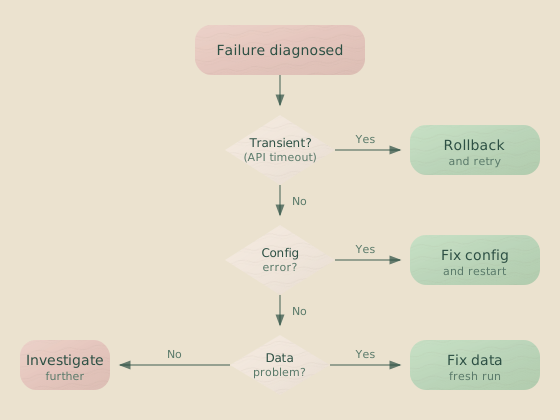
The Decision Tree
When a codon fails, work through this decision tree to find the right recovery approach:
Rollback Commands
Hankweave provides three levels of rollback precision.
To Last Success
The simplest option: roll back to the last successfully completed codon.
{
  "type": "rollback.toLastSuccess",
  "data": { "autoRestart": true }
}
Use this when you want to retry from the last known good state.
Codon Control Commands
Beyond rollbacks, you can control the current codon directly:
| Command | What It Does | When to Use |
|---|---|---|
codon.redo | Retries the last codon. | Transient errors like timeouts or rate limits. |
codon.skip | Skips the current codon. | A codon is stuck or burning tokens unnecessarily. |
codon.forceStop | Immediately fails the current codon. | You need to stop execution right now. |
codon.next | Starts the next codon. | After performing a manual intervention. |
When to Edit vs. When to Roll Back
Choosing the right recovery strategy is key.
- Edit the prompt when the agent’s approach is wrong, its instructions are unclear, or it keeps making the same mistake. You are fixing the instructions.
- Edit the rig when the setup is flawed—missing dependencies, wrong file paths, or incorrect commands. You are fixing the environment.
- Roll back when the file state is corrupted or inconsistent, or when you want to try a completely different approach from a known good state. You are fixing the state.
- Redo when you hit a transient error and simply want to try again with the exact same configuration. You are not fixing anything, just retrying.
Replay Mode
Hankweave can replay a completed execution from its JSONL logs without making real LLM API calls. This is invaluable for debugging because you can re-examine a run’s behavior as many times as you need, at zero cost.
hankweave --replay ~/.hankweave-executions/my-runReplay copies the execution directory to a temp location (preserving the original), auto-discovers the hank config and data paths, and uses timestamp-based pacing for realistic output timing. Rig setup and sentinels are skipped since the copied directory already has post-setup state.
When to use replay:
- Investigating failures: Re-watch a failed run to understand the sequence of events without spending tokens.
- Testing TUI changes: Verify that UI improvements render correctly against real execution data.
- Demos: Show a completed run to someone without re-running the hank.
- Building tooling: Develop custom clients or event processors against real event streams.
Advanced Debugging
For complex issues, you may need to dig deeper.
Comparing Runs
Each run is stored on its own git branch in the shadow repo, allowing you to compare different approaches side by side.
export GIT_DIR=.hankweave/checkpoints/.hankweavecheckpoints
export GIT_WORK_TREE=agentRoot

# List all run branches
git branch -a

# See the full diff between two runs
git diff run-1736978400000 run-1736979000000

# See only which files changed between two runs
git diff --name-only run-1736978400000 run-1736979000000
Execution Thread Analysis
The execution thread provides a unified history across all runs, showing how they connect. This is especially useful when you’ve rolled back multiple times and need to understand the full history of an agent’s work.
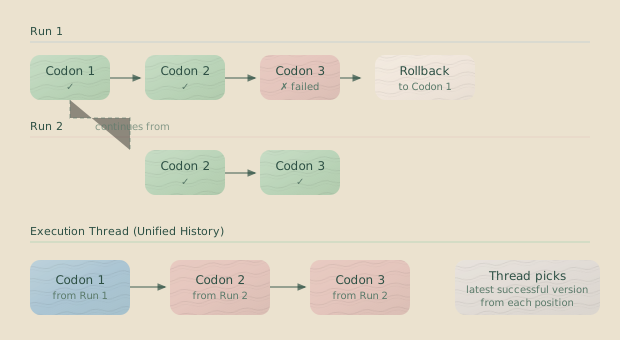
This thread traces continuations to show which codons executed in which order, which run each belongs to, session ID chains for continue-previous codons, and which checkpoints are still valid ancestors of the current state.
Sentinel Debugging
When sentinels behave unexpectedly, here’s how to investigate.
- Why didn’t it trigger? Check the
interestfilter first—does it match the events being produced? Then check theconditions—they might be too restrictive. For sequence triggers, verify the pattern actually appeared in the event stream. - Why did it unload? Look at the
unloadReasonin the sentinel’s state. Afatal-errormeans something broke;consecutive-failuresmeans LLM calls kept failing, so check your API keys and connectivity. - Template errors? Syntax errors are caught at load time, but runtime errors (like accessing an undefined variable) occur during execution. Check
.hankweave/logs/server.logfor details. - Output issues? Filenames without paths are written to
.hankweave/sentinels/outputs/. Paths containing/are relative to the execution directory. Verify write permissions if files aren’t appearing.
Programmatic Log Analysis
For Tool Builders: This section is for developers building custom tools on top of Hankweave.
For programmatic access to logs, Hankweave provides a WebSocketLogReader utility.
import { WebSocketLogReader } from "hankweave/server/websocket-log-reader";

const reader = new WebSocketLogReader(".hankweave/logs/websocket.log");
await reader.readLog();

// Get overall statistics
const stats = reader.getStatistics();
console.log(`Total entries: ${stats.totalEntries}`);
console.log(`Message types:`, stats.messageTypes);

// Filter messages for a specific codon
const codonMessages = reader.getCodonMessages("build-schema");

// Filter messages by type
const errors = reader.filterByMessageType("error");
Performance Investigation
- High costs? Check which codon is expensive by looking at its
finalCostorpartialCost. Sentinel costs are tracked separately per-sentinel. If the context window fills up repeatedly, you may be using more tokens than necessary—reducecheckpointedFilesor split the work. - Slow execution? Review event timestamps to see where time is being spent. Sentinels with large queue backlogs can introduce delays. Committing checkpoints for many large files can also be slow.
Debugging Anti-Patterns
Some debugging approaches that feel productive actually make things worse. Recognize and avoid these patterns.
The Infinite Retry Loop
Anti-pattern: When something fails, immediately retry without changing anything.
Why it’s wrong: If a codon failed deterministically (wrong prompt, missing file, logical error), retrying produces the same failure. You’re burning tokens for no benefit.
Instead: Diagnose first. Check failureReason. If it’s retriable: true (timeout, rate limit), then retry. If it’s a logic or configuration error, fix the root cause before retrying.
Prompt Patching
Anti-pattern: When output is wrong, add more instructions to the prompt without understanding why the agent went wrong.
# Original prompt

Generate a REST API for the user module.

# After first failure, add:

Make sure to include authentication.

# After second failure, add:

Use JWT tokens, not sessions.

# After third failure, add:

The tokens should expire in 24 hours.

# After fourth failure, add:

Don't use the deprecated jsonwebtoken library.
Why it’s wrong: The prompt becomes a pile of accumulated fixes without structure. New instructions might contradict earlier ones. The agent doesn’t understand the overall intent—it just sees a list of constraints.
Instead: When output is wrong, understand why before adding instructions. Was the agent missing context? Did it have a different preference? Was the task underspecified? Then rewrite the prompt with clear structure, not patch it with addendums.
Verification Blindness
Anti-pattern: Assuming the agent did what you asked without checking the artifacts.
Why it’s wrong: Agents are confident even when wrong. They’ll say “Done!” when the code doesn’t compile. They’ll report success when tests don’t pass. Trust but verify.
Instead: Check the actual outputs. Run the tests. Compile the code. Read the generated files. Use beforeCopy validation in outputFiles to automate this verification.
Debugging by Deletion
Anti-pattern: When a complex hank fails, start removing codons until it works.
Why it’s wrong: You might remove the codon that’s exposing the bug, not the one causing it. You end up with a simpler hank that doesn’t actually solve your problem.
Instead: Isolate the failure first. Run individual codons with --start-at and --end-at. Check the state file to find exactly which codon failed. Then investigate that specific codon.
The Kitchen Sink Prompt
Anti-pattern: When uncertain what the agent needs, include everything.
Read all the files in the codebase. Understand the architecture. Note the coding style.
Learn the conventions. Check the tests. Review the CI configuration. Examine the
package.json. Read the README. Study the documentation. Then implement the feature.
Why it’s wrong: More context isn’t always better. The agent wastes tokens on irrelevant exploration. Important information gets buried. Context windows fill up before the real work begins.
Instead: Tell the agent exactly what it needs to know. Point it to specific files. Provide context summaries. Be surgical, not comprehensive.
Ignoring Partial Progress
Anti-pattern: When a codon fails, rolling back to the beginning and starting over.
Why it’s wrong: You lose all the valid work the agent did before the failure. If it analyzed 50 files correctly before failing on file 51, rolling back to the start means re-analyzing those 50 files.
Instead: Use precise rollback. Roll back to the last successful checkpoint, not the beginning. Fix only what’s broken. Preserve the work that was good.
The Monolithic Codon
Anti-pattern: Putting an entire workflow in one codon to avoid debugging complexity.
{
  "id": "do-everything",
  "promptText": "Analyze the codebase, design the architecture, implement the feature, write tests, update documentation, and deploy to staging."
}
Why it’s wrong: When it fails (and it will), you have no visibility into where things went wrong. No intermediate checkpoints. No way to roll back partially. Debugging becomes archaeology.
Instead: Split into focused codons. Each codon should do one thing well. The overhead of multiple codons is worth the debugging clarity.
Quick Reference
Keep these tables handy when debugging.
Key Files
| File | What It Contains |
|---|---|
.hankweave/state.json | Current execution state, run history, codon status. |
.hankweave/events/events.jsonl | Complete, chronological event stream. |
.hankweave/logs/server.log | Server-side logs, including timestamps and errors. |
.hankweave/logs/websocket.log | All raw WebSocket traffic. |
.hankweave/runs/{runId}/{codonId}-{model}.log | Per-codon agent conversation logs. |
.hankweave/checkpoints/.hankweavecheckpoints | The shadow git repository for all file states. |
At-a-Glance Troubleshooting
| Symptom | Likely Cause | Quick Fix |
|---|---|---|
| Codon keeps timing out | Task is too complex for one turn. | Split into smaller codons. |
| Context exceeded unexpectedly | Too many files are being tracked. | Reduce checkpointedFiles patterns. |
| Rig fails on iteration 2+ | A file or directory already exists. | Add allowFailure: true to the rig step. |
| Can’t continue session | Model mismatch or empty prior session. | Use fresh continuation mode. |
| Sentinel never triggers | interest filter is too narrow. | Widen the filter or check event types. |
| Costs are spiraling | A loop isn’t terminating correctly. | Add an iterationLimit to the loop. |
| Codon stopped unexpectedly | Budget limit was hit. | Check the budget summary table or use --max-cost to increase the ceiling. See Budgets. |
Related Pages
- Codons — The atomic unit of work
- Execution Flow — How Hankweave orchestrates runs
- Loops — Iteration and termination modes
- Rigs — Deterministic setup for codons
Next Steps
Now that you understand how to debug, the best way to get comfortable is to practice.
- Familiarize yourself with the state file: Run a hank and examine
.hankweave/state.json. - Practice rollbacks: Intentionally fail a codon and use the recovery commands to fix it.
- Set up monitoring: Add sentinels for cost tracking and error detection.
Debugging is a skill that compounds. Every failure you diagnose makes the next one easier to solve.