Getting Started
This guide takes you from zero to running your first AI workflow with Hankweave. In five minutes, you’ll have it installed, configured, and analyzing data.
Who is this for? This is for anyone who wants to quickly see Hankweave in action. No prior knowledge is required.
What You’ll Build
By the end of this guide, you will have:
- A working Hankweave project initialized from a template.
- A sample dataset analyzed by two different AI agents (Claude and Gemini).
- Generated analysis files that you can inspect and modify.
Prerequisites
Before starting, make sure you have the following.
Bun (Required)
Hankweave is built on Bun , a fast JavaScript runtime.
To install it, run:
curl -fsSL https://bun.sh/install | bashVerify the installation by checking its version:
bun --versionGit (Required)
Hankweave uses Git to create checkpoints of your workflow’s state. You likely already have it installed.
Verify your installation:
git --versionIf not, you can install it from git-scm.com .
API Keys (At Least One)
You need an API key for at least one AI model provider. The starter project uses both Claude and Gemini.
- Anthropic (Claude): Get a key at console.anthropic.com
- Google (Gemini): Get a key at aistudio.google.com
Once you have your key(s), set them as environment variables:
export ANTHROPIC_API_KEY="your-anthropic-key"
export GEMINI_API_KEY="your-gemini-key"
You only need one key to get started. The project includes configurations for both, but you can ignore or remove the one you don’t have a key for.
Want to use your Claude Max subscription?
If you have a Claude Max subscription and want to use it instead of a separate API key, you can authenticate via OAuth token:
-
Run the setup command:
Textclaude setup-token -
Export the token:
Textexport CLAUDE_CODE_OAUTH_TOKEN=your-token-here
For more details, see API Keys and Models.
Using OpenAI or Codex?
For OpenAI API keys:
export OPENAI_API_KEY="your-openai-key"For Codex with OAuth (uses your ChatGPT Plus/Pro subscription):
-
Run Codex login locally:
Textcodex login -
Hankweave will automatically pick up the Codex session as long as
~/.codex/auth.jsonexists.
For more details on Codex integration, see API Keys and Models.
1. Create Your First Project
Create and Enter a Directory
First, make a new directory for your project.
mkdir my-first-hank
cd my-first-hank
Initialize the Project
Next, use bunx to run the Hankweave initializer. This downloads and runs the CLI without a permanent global installation.
bunx hankweave@latest --initThis command scaffolds a new project with the following structure:
my-first-hank/
├── hank.json              # The workflow definition
├── prompts/
│   ├── analyze-haiku.md   # Prompt for Claude Haiku
│   └── analyze-gemini.md  # Prompt for Gemini
├── data/
│   ├── sample1.txt        # Sample data files
│   ├── sample2.txt
│   └── notes.txt
└── README.md
Understand the Workflow File
The hank.json file defines your AI workflow. It contains two codons, which are the basic units of work for an AI agent.
{
  "meta": {
    "name": "My Workflow",
    "version": "1.0.0",
    "description": "Generated by hankweave init"
  },
  "hank": [
    {
      "id": "analyze-haiku",
      "name": "Analyze Project (Claude Haiku)",
      "model": "haiku",
      "continuationMode": "fresh",
      "promptFile": "./prompts/analyze-haiku.md",
      "outputFiles": [{ "copy": ["analysis-claude.md"] }]
    },
    {
      "id": "analyze-gemini",
      "name": "Analyze Project (Gemini Flash)",
      "model": "gemini-2.5-flash",
      "continuationMode": "fresh",
      "promptFile": "./prompts/analyze-gemini.md",
      "outputFiles": [{ "copy": ["analysis-gemini.md"] }]
    }
  ]
}
This configuration defines a hank with two independent steps:
- analyze-haiku: Uses a Claude model to analyze the data.
- analyze-gemini: Uses a Gemini model to perform the same analysis.
Both have continuationMode: "fresh", which means they run independently and don’t see each other’s work.
2. Run Your First Hank
Start Hankweave
From your project directory, run Hankweave:
bunx hankweave@latestHankweave performs several actions:
- Calculates a unique signature for your data to track changes.
- Creates an isolated execution directory inside
~/.hankweave-executions/. - Starts a local WebSocket server for communication.
- Launches the Terminal User Interface (TUI).
Hankweave v0.2.0

Calculating data signature...
Data signature: a1b2c3
Created execution directory: ~/.hankweave-executions/1737001234567-abc1-a1b2c3
📁 Data source: /path/to/my-first-hank
🏃 Execution: /Users/you/.hankweave-executions/1737001234567-abc1-a1b2c3
🔗 Link type: symlink
🎮 Running in TUI mode (use --headless to disable)
Watch the Execution
The TUI shows the workflow’s progress in real time. You can see which codon is running, what the AI agent is doing (like reading files or calling tools), and live cost tracking.
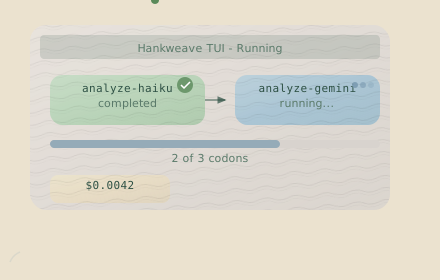
The codons run sequentially. When analyze-haiku finishes, analyze-gemini begins automatically.
Exit When Done
The workflow runs until all codons are complete. Once finished, the TUI will display a completion message and may exit automatically. You can also press Ctrl+C at any time to exit early.
Check the Results
After the run, you’ll find the generated files in two places:
- Execution Directory (
~/.hankweave-executions/...): This sandboxed folder contains all runtime artifacts, including logs, checkpoints, and the direct output from the AI agents (analysis-claude.md,analysis-gemini.md). - Project Results Directory (
hankweave-results/): A copy of the final output files, as defined by theoutputFileskey in yourhank.json, is placed here for easy access.
3. Modify and Re-run
Hankweave is designed for iteration. Let’s change a prompt and see what happens.
Edit a Prompt
Open prompts/analyze-haiku.md in your editor and add a new requirement to the list:
# Project Analysis (Claude)

Please analyze the files in the `data` directory and create a comprehensive analysis report.

Your analysis should include:

1. Overview of each file's purpose
2. Key themes across the files
3. Suggestions for improvement
4. A summary in the form of a haiku.

Please create your analysis in a file called `analysis-claude.md` in the execution directory.
Run Again
Run the same command again from your project directory:
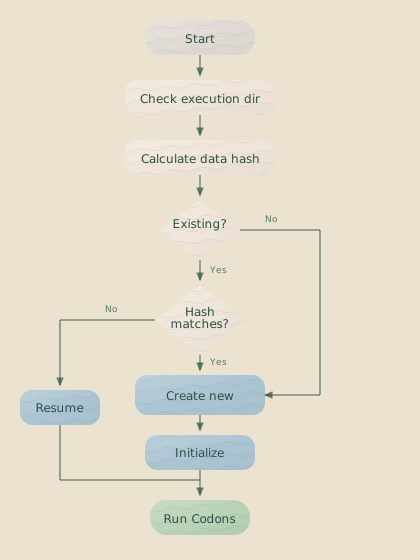
bunx hankweave@latestHankweave tracks whether your data files have been modified. If no files have changed since your last run, it resumes the previous execution—useful for iterating on prompts without re-running completed steps. If any data file has been modified, Hankweave creates a fresh execution directory.
To force a completely fresh run regardless of data changes, use the --start-new flag:
bunx hankweave@latest --start-newUnderstanding the Output
Isolated Execution Environment
Hankweave never modifies your source files. All work happens in an isolated execution directory, ensuring your project stays clean and runs are reproducible.
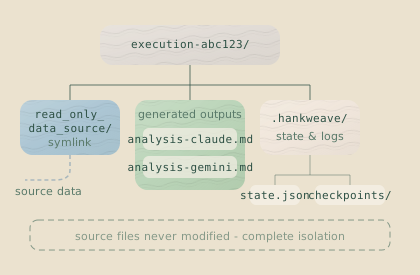
This directory contains everything related to a specific run:
read_only_data_source/: A symlink to your project data.analysis-claude.md: The file created by the first codon.analysis-gemini.md: The file created by the second codon..hankweave/: A folder containing logs, state, and checkpoints.
Checkpoints
Every time a codon completes, Hankweave creates a Git commit in the execution directory’s .hankweave/checkpoints repository. This allows you to inspect the state of the filesystem at any point and roll back to a previous state if needed.
Troubleshooting
Make sure you’ve exported your API keys as environment variables or created a
.env file in your project root. bash export ANTHROPIC_API_KEY="sk-..." export GEMINI_API_KEY="..."
Hankweave needs files to analyze. Run the command from a directory containing
your data, or specify a path: bunx hankweave@latest ./path/to/data.
You are likely running the command from within a ~/.hankweave-executions/
directory. cd back to your project directory and try again.
Pro Tips
As you start building your own hanks, keep these patterns in mind:
Validate Before Running
Always validate your configuration before spending tokens:
bunx hankweave@latest --validateThis catches missing files, invalid models, and configuration errors for $0.00. It also shows you an ASCII visualization of your hank’s structure.
Test Cheaply with Model Override
When iterating on workflow structure, test with the cheapest model:
bunx hankweave@latest --model haikuThis overrides all codons to use Haiku, which is ~10-20x cheaper than Sonnet. The output quality won’t be production-ready, but you’ll know if your workflow executes correctly.
Set a Cost Safety Net
When experimenting, set a budget ceiling to avoid surprises:
# Cap the run at $1 — great for learning
bunx hankweave@latest --max-cost 1.00
This kills the agent process if costs exceed $1, regardless of what the hank’s config says. You can also set a time limit with --max-time 300 (5 minutes). See Budgets for the full system.
Declare Required Environment Variables
Add a requirements section to fail fast when keys are missing:
{
  "requirements": {
    "env": ["ANTHROPIC_API_KEY"]
  },
  "hank": [...]
}
This is checked during --validate and at startup, so you won’t discover missing keys mid-execution.
Next Steps
Congratulations, you’ve run your first hank! Now you’re ready to explore further.
- Learn Core Concepts: Read about Codons and Hanks to understand the building blocks of a workflow.
- Explore Execution: See Execution Flow for a deeper dive into what happens under the hood.
- Master Advanced Patterns: See Advanced Patterns for production-tested techniques like codon decomposition, global system prompts, and archiving in loops.
Reference
Common Commands
| Command | Description |
|---|---|
bunx hankweave@latest --init | Initialize a new project in the current directory. |
bunx hankweave@latest | Run the workflow, resuming from the last execution if data is unchanged. |
bunx hankweave@latest --start-new | Force a fresh execution in a new directory. |
bunx hankweave@latest --headless | Run without the TUI, for use in scripts or CI/CD environments. |
bunx hankweave@latest --headless --autostart | Run headless and start execution immediately without waiting. |
bunx hankweave@latest --validate | Validate the hank.json configuration without running the workflow. |
bunx hankweave@latest --help | Show all available command-line options. |
Specifying Paths
By default, Hankweave looks for hank.json and your data in the current directory. You can override this behavior.
# Use a specific config file and data directory
bunx hankweave@latest ./my-hank.json ./my-data

# Use a specific data directory (with default hank.json)
bunx hankweave@latest ./my-data

# Use a remote hank definition from GitHub
bunx hankweave@latest https://github.com/user/repo ./my-data
How It Works
This diagram shows the logic Hankweave follows when you run the command.