Event Journal
The event journal is Hankweave’s persistent memory. Every significant event during execution—a codon starting, an agent acting, a sentinel firing, an error occurring—is recorded as a timestamped entry in a JSONL file. It’s the definitive record of what happened, when, and why.
Who is this for? This page is for developers building tools, dashboards, or debugging complex runs (Track 3: Building on Hankweave, and Track 4: Contributing). If you’re new to Hankweave, you can safely skip to Debugging for practical troubleshooting.
What Gets Journaled
Hankweave classifies events into four categories. Three are persisted to the journal:
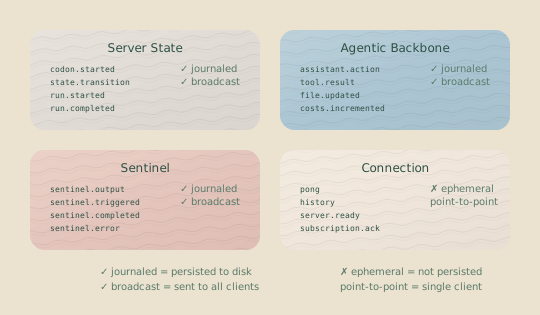
Connection state events are client-specific and ephemeral. They are sent directly to the relevant WebSocket client and never saved. All other events are written to the journal.
Server State Events
These events track Hankweave’s execution state and lifecycle. They record when codons start and stop, when rollbacks happen, and when errors occur.
| Event Type | Purpose |
|---|---|
codon.started | Codon execution begins |
codon.completed | Codon execution ends (success or failure) |
state.snapshot | Current execution state summary |
server.idle | Server waiting for commands |
token.usage | Token consumption update |
info | Informational messages |
error | Errors (with severity levels) |
checkpoint.list | Available checkpoints |
rollback.started | Rollback begins |
rollback.progress | Rollback progress updates |
rollback.codonCheckpoint | Checkpoint applied during rollback |
rollback.rigCleanup | Rig directory cleanup during rollback |
rollback.completed | Rollback finished |
state.transition | Internal state machine transition |
Agentic Backbone Events
These events capture what the agent actually does: thinking, calling tools, and modifying files.
| Event Type | Purpose |
|---|---|
assistant.action | Agent thinking, messaging, or using tools |
tool.result | Tool execution results |
file.updated | File created, modified, or deleted |
filetree.updated | File tree structure changes |
Sentinel Events
These events track your parallel observers, telling you when they trigger and what they output.
| Event Type | Purpose |
|---|---|
sentinel.loaded | Sentinel starts watching |
sentinel.triggered | Trigger fires (verbose, often disabled) |
sentinel.output | LLM response from sentinel |
sentinel.error | Sentinel error |
sentinel.unloaded | Sentinel stops |
Connection State Events (Not Journaled)
These events manage client-server communication and are sent only to individual clients. They are not part of the permanent execution history.
| Event Type | Purpose |
|---|---|
server.ready | Server initialized (sent to connecting client) |
pong | Response to ping |
history.batch | Event history chunk during sync |
incomplete.codon | Codon didn’t finish |
File Location and Format
The event journal is located at .hankweave/events/events.jsonl in your execution directory.
It’s a JSONL (JSON Lines) file, with one JSON object per line in chronological order. This format is simple, append-only, and easy to process with standard command-line tools or any programming language.
Event Structure
Every event shares a common structure, making them easy to parse programmatically.
{
  "id": "evt_a1b2c3d4",
  "type": "codon.completed",
  "timestamp": "2025-01-15T14:32:01.234Z",
  "data": {
    "codonId": "generate-schema",
    "success": true,
    "cost": 0.0234,
    "duration": 45000,
    "exitStatus": { "type": "success" }
  }
}| Field | Description |
|---|---|
id | Unique event identifier (evt_...) |
type | The event type, which determines the data schema |
timestamp | ISO 8601 timestamp |
data | Event-specific payload |
The schema of the data field depends on the event type. For complete schemas of every event, see the WebSocket Protocol reference.
Sample Journal Output
Here is a sample journal for a simple codon that reads files and creates a notes document:
{"id":"evt_001","type":"codon.started","timestamp":"2025-01-15T14:30:00.000Z","data":{"codonId":"observe","codonName":"Observe Data","sessionId":"ses_abc123","startTime":"2025-01-15T14:30:00.000Z"}}
{"id":"evt_002","type":"assistant.action","timestamp":"2025-01-15T14:30:01.500Z","data":{"codonId":"observe","action":"thinking","content":"Analyzing the CSV files..."}}
{"id":"evt_003","type":"tool.result","timestamp":"2025-01-15T14:30:02.100Z","data":{"codonId":"observe","toolUseId":"tu_xyz","toolName":"Read","result":"...file contents...","truncated":false,"originalLength":1234,"executionTimeMs":50,"isError":false}}
{"id":"evt_004","type":"file.updated","timestamp":"2025-01-15T14:30:15.000Z","data":{"path":"notes/observations.md","filename":"observations.md","content":"# Data Observations\n...","action":"created"}}
{"id":"evt_005","type":"token.usage","timestamp":"2025-01-15T14:30:45.000Z","data":{"codonId":"observe","inputTokens":1500,"outputTokens":800,"cacheCreationTokens":0,"cacheReadTokens":0,"totalCost":0.012}}
{"id":"evt_006","type":"codon.completed","timestamp":"2025-01-15T14:31:00.000Z","data":{"codonId":"observe","success":true,"cost":0.012,"duration":60000,"exitStatus":{"type":"success"}}}
Storage Backends
Hankweave uses one of two storage backends for the journal, chosen automatically based on the server’s configuration.
FileEventStorage (Default)
For production, FileEventStorage provides persistent, on-disk storage. It writes events to an append-only JSONL file at .hankweave/events/events.jsonl, ensuring the journal survives server restarts.
MemoryEventStorage
For testing and development, MemoryEventStorage keeps events in RAM. It retains a maximum of 100 events, automatically trimming the oldest entries to stay under the limit. All events are lost when the server restarts.
Memory storage loses data on restart. Only use it for temporary test environments.
Querying the Journal
The EventJournal class provides methods to read events programmatically, compatible with both storage backends.
Get Recent Events
const { events, totalEvents, hasMore } = await journal.getMostRecentEvents(50);

// events: The last 50 events, sorted chronologically (oldest to newest).
// totalEvents: The total number of events in the journal.
// hasMore: true if the journal contains more events than requested.
Note that events are returned in chronological order (oldest first), which is the correct order for replaying them in sequence.
Stream All Events
For large journals, streaming avoids loading the entire file into memory.
for await (const event of journal.getAllEvents()) {
  console.log(event.type, event.timestamp);
}
This async generator yields events one at a time, making it efficient for journals with thousands of entries.
Get Total Count
const count = await journal.getTotalEvents();Create Download Stream
To export the full journal or pipe it to external tools, use the raw stream method.
const stream = await journal.streamAllEvents();
// Returns a Node.js ReadableStream of the raw JSONL content
Working with Events
Here are common patterns for filtering and analyzing events from the journal.
Filtering by Codon
Most events include a codonId in their data payload, allowing you to isolate a specific codon’s activity.
for await (const event of journal.getAllEvents()) {
  if ("codonId" in event.data && event.data.codonId === "generate-schema") {
    console.log(event);
  }
}
Filtering by Category
The event schemas include type guard functions that make filtering by category type-safe.
import {
  isServerStateEvent,
  isAgenticBackboneEvent,
  isSentinelEvent,
} from "@hankweave/types"; // From the public types package

for await (const event of journal.getAllEvents()) {
  if (isAgenticBackboneEvent(event)) {
    // Process only agent actions, tool results, and file changes
  }
}
Finding Failures
Quickly find failed codons or fatal errors.
for await (const event of journal.getAllEvents()) {
  if (event.type === "codon.completed" && !event.data.success) {
    console.log(`Failed: ${event.data.codonId}`);
    console.log(`Reason: ${event.data.failureReason?.message}`);
  }
  if (event.type === "error" && event.data.fatal) {
    console.log(`Fatal error: ${event.data.message}`);
  }
}
Tracking Costs
Use token.usage events to calculate running costs.
let totalCost = 0;
for await (const event of journal.getAllEvents()) {
  if (event.type === "token.usage") {
    totalCost += event.data.totalCost;
  }
}
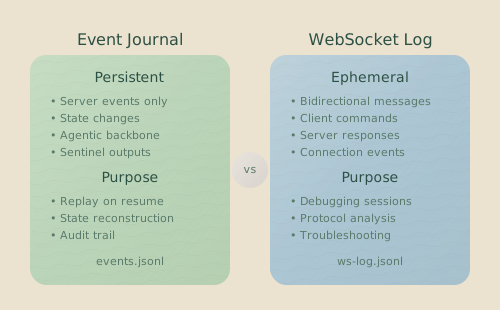
Event Journal vs. WebSocket Log
Hankweave maintains two distinct logs. Understanding their purpose will help you choose the right one for debugging.
| Aspect | Event Journal | WebSocket Log |
|---|---|---|
| Location | .hankweave/events/events.jsonl | .hankweave/logs/websocket.log |
| Contains | Server State, Agentic, & Sentinel events | All WebSocket traffic (events + commands) |
| Purpose | Execution history and state replay | Protocol-level debugging |
| Includes commands? | No | Yes (client-sent commands) |
| Includes connection events? | No | Yes (server.ready, pong, etc.) |
| Use Case | ”What happened during this run?" | "What exactly went over the wire?” |
The event journal is the canonical history of the execution. The WebSocket log is a raw dump of all communication. You’ll almost always want the event journal unless you’re debugging client-server connection issues.
Performance Considerations
File Growth
The event journal grows with every action. A typical run might generate 10–50 events per codon, with each event averaging 500–2000 bytes. A 10-codon run could produce 50–500 KB of journal data. For long-running processes, the journal can become very large. When reading the journal, prefer streaming over loading the entire file into memory.
Archiving Old Journals
Hankweave does not automatically rotate or archive journals. To preserve history while managing disk space, you can manually compress or move the file between runs.
# Compress the current journal
gzip .hankweave/events/events.jsonl

# Or move it to an archive directory
mv .hankweave/events/events.jsonl ~/archives/run-$(date +%Y%m%d).jsonl
The server will create a new journal file on its next run.
Bulk Operations
During bulk operations like history replay, FileEventStorage buffers writes and flushes them to disk in chunks to improve performance. During normal execution, each event is appended to the file as it occurs.
Building Tools with the Event Journal
The journal’s simple, predictable format makes it ideal for building custom tooling. Here are a few useful patterns.
Progress Dashboard
Create a live view of codon status by tracking start and completion events.
const { events, hasMore } = await journal.getMostRecentEvents(100);

const codons = new Map();
for (const event of events) {
  if (event.type === "codon.started") {
    codons.set(event.data.codonId, {
      status: "running",
      start: event.timestamp,
    });
  }
  if (event.type === "codon.completed") {
    const codon = codons.get(event.data.codonId);
    if (codon) {
      codon.status = event.data.success ? "completed" : "failed";
      codon.cost = event.data.cost;
    }
  }
}
Cost Breakdown by Codon
Aggregate costs to see where your tokens are being spent.
const costs = new Map<string, number>();
for await (const event of journal.getAllEvents()) {
  if (event.type === "codon.completed") {
    costs.set(event.data.codonId, event.data.cost);
  }
}
Error Timeline
Generate a chronological list of all errors that occurred during a run.
const errors = [];
for await (const event of journal.getAllEvents()) {
  if (event.type === "error") {
    errors.push({
      time: event.timestamp,
      message: event.data.message,
      severity: event.data.severity || "unknown",
      fatal: event.data.fatal,
    });
  }
}
Related Pages
- WebSocket Protocol — Complete event and command schemas
- Debugging — Using the journal for troubleshooting
- Execution Flow — Understanding the event lifecycle
- State Machine — The formal model behind state transitions