Files and Directories
When you run a hank, Hankweave creates a self-contained execution directory for all its work, including state files, logs, checkpoints, and agent outputs. This guide maps out that entire structure. Understanding it is key for debugging, building custom tools, or simply seeing what’s happening under the hood.
This page details every file and directory Hankweave creates, with enough detail that you could recreate the structure from scratch.
Who is this for? This guide is for: - Hank Users: Finding logs, outputs, and checkpoints when debugging. - Tool Builders: Understanding which files to read when building on Hankweave. - Hankweave Contributors: Knowing the full file layout for development.
Execution Directory Structure
Hankweave operates inside an execution directory. This workspace contains all generated files: agent outputs, state, logs, and checkpoints. Your original data is kept separate and untouched, accessed via a read-only symlink within this directory.
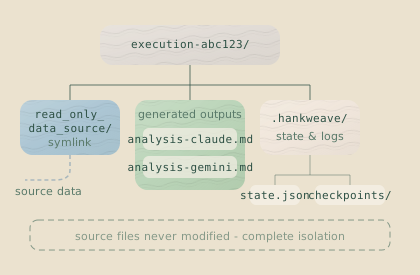
The full structure looks like this:
~/.hankweave-executions/{timestamp}-{random}-{hash}/    # Default location
├── read_only_data_source/                              # Data access (symlink or copy)
│   └── {your data files}
├── agentRoot/                                          # Agent working directory
│   ├── notes/                                          # Files created by agents
│   ├── code/
│   └── ...
├── rigArchive/                                         # Archived rig setups (optional)
│   └── {codonId}/                                      # Archived after successful codon
│       └── {copied files from rig}
└── .hankweave/                                         # Hankweave internal state
    ├── runtime.lock                                    # Server PID + heartbeat + port
    ├── execution-meta.json                             # Execution metadata
    ├── state.json                                      # Current state
    ├── state.json.bak                                  # Backup state
    ├── archive-manifest.json                           # Tracks all archived files
    ├── events/
    │   └── events.jsonl                                # Event journal
    ├── logs/
    │   ├── server.log                                  # Server logs
    │   └── websocket.log                               # WebSocket traffic
    ├── runs/
    │   └── {runId}/
    │       ├── {codonId}-claude.log                    # Per-codon agent logs
    │       └── ...
    ├── checkpoints/
    │   ├── .hankweavecheckpoints/                      # Shadow git repository
    │   └── .gitconfig                                  # Isolated git config
    └── sentinels/
        ├── outputs/
        │   └── {sentinelId}/
        │       ├── {id}-{codon}-{timestamp}.md         # Text outputs
        │       └── {id}-{codon}-{timestamp}.ndjson     # Structured outputs
        └── history/
            └── {sentinelId}-codon-{codonId}.json       # Conversational history
Execution Directory Location
By default, Hankweave creates execution directories in ~/.hankweave-executions/. Directory names use the format:
{timestamp}-{random}-{dataHash}- timestamp: Unix timestamp in milliseconds (e.g.,
1736000000000) - random: 4-character random string (e.g.,
x7a2) - dataHash: First 6 characters of your data source hash (e.g.,
abc123)
You can specify a custom location with --execution=/path/to/dir.
Reserved Location: The ~/.hankweave-executions/ directory is managed by
Hankweave. Do not use the --execution flag to point to a path inside this
directory. If you need a custom location, choose one elsewhere on your
filesystem.
read_only_data_source
This directory provides read-only access to your original data. By default, it’s a symlink to your data source, isolating the execution while providing necessary file access to agents.
With --copy, Hankweave copies your data instead of symlinking. Use this when:
- Your data source might change during execution.
- You need the execution directory to be fully self-contained.
- Symlinks aren’t supported (e.g., some CI environments).
The read_only_data_source directory is never checkpointed. This is enforced at the file resolver level; the UnifiedFileResolver always ignores this path, regardless of your checkpointedFiles patterns.
agentRoot/
The agentRoot/ directory is where agents do their work. This is the working directory passed to agent processes, and all file operations happen here. Everything the agent creates—code, documentation, analysis results—lives in this directory.
Files in agentRoot/ are tracked by checkpoints (if they match checkpointedFiles patterns), allowing you to roll back the workspace to any previous state.
rigArchive/
When you set archiveOnSuccess on a codon (as an array of glob patterns), Hankweave moves matching files here after a successful codon completion. This keeps agentRoot/ clean between iterations while preserving the rig’s artifacts for debugging.
{
  "rigSetup": [
    {
      "type": "copy",
      "copy": { "from": "./templates", "to": "src" }
    }
  ],
  "archiveOnSuccess": ["src/**/*"]
}
After the codon completes successfully, files matching the archiveOnSuccess patterns are moved to rigArchive/{codonId}/.
When to use archiving: Use archiveOnSuccess when large template
directories would otherwise accumulate across loop iterations. This keeps your
working directory lean while preserving artifacts for debugging.
The .hankweave Directory
All internal state lives here. This directory contains everything Hankweave needs to track execution, persist events, and enable time-travel debugging.
runtime.lock
This file tracks the running server process to prevent conflicts and detect crashes. It answers two questions: is a server running in this directory, and is it still alive?
{
  "pid": 12345,
  "runId": "1736000000000-abc123-def456",
  "startTime": "2025-01-04T12:00:00.000Z",
  "lastHeartbeat": "2025-01-04T12:01:30.000Z",
  "port": 54321
}| Field | Description |
|---|---|
pid | Process ID of the running server |
runId | Current run identifier |
startTime | When the server started |
lastHeartbeat | Timestamp updated every 30 seconds |
port | The WebSocket server port (useful for --attach and external tooling) |
This enables crash detection. If a new server starts and finds a lock file with a stale heartbeat, it can infer that the previous process crashed and initiate recovery.
execution-meta.json
This file captures the execution environment’s identity—where it came from, what it’s working with, and how it connects to your data.
{
  "version": "1.0.0",
  "readOnlySourceDataPath": "/path/to/your/data",
  "readOnlySourceResolvedDataPath": "/actual/resolved/path",
  "dataHash": "abc123def456...",
  "hankHash": "789xyz...",
  "hankPath": "/path/to/hank.json",
  "linkType": "symlink",
  "createdAt": "2025-01-04T12:00:00.000Z",
  "lastUsed": "2025-01-04T14:30:00.000Z"
}| Field | Description |
|---|---|
version | Metadata format version |
readOnlySourceDataPath | The original path to your data source, as you provided it. |
readOnlySourceResolvedDataPath | The absolute, canonical path after resolving any symlinks. |
dataHash | Hash of your data source (for resume detection). |
hankHash | Hash of hank.json content (to detect config changes). |
hankPath | Path to the hank configuration file. |
linkType | How data was linked: symlink or copy. |
createdAt | When this execution directory was created. |
lastUsed | Last time this execution was used. |
The dataHash is how Hankweave finds existing executions. If you run hankweave --data=/my/project twice, the second run will resume in the same execution directory because the hash matches.
The hankHash tracks config changes. If you modify your hank.json between runs, Hankweave will warn you that the configuration has changed.
state.json
The heart of Hankweave’s persistence layer. This file contains the complete execution history: runs, codons, checkpoints, and costs. See State File Reference for the full schema.
A backup (state.json.bak) is created before each save. If the primary file is corrupted, Hankweave automatically falls back to the backup.
events/events.jsonl
The persistent event journal. Every significant event is appended here as a single JSON line, creating a complete, ordered audit trail.
{"type":"codon.started","timestamp":"2025-01-04T12:00:01.000Z","data":{"codonId":"observe#0",...}}
{"type":"assistant.action","timestamp":"2025-01-04T12:00:05.000Z","data":{"action":"tool_use",...}}
{"type":"file.updated","timestamp":"2025-01-04T12:00:10.000Z","data":{"path":"notes/observations.md",...}}
{"type":"codon.completed","timestamp":"2025-01-04T12:01:00.000Z","data":{"codonId":"observe#0","success":true,...}}
See Event Journal for the complete schema of journaled events.
logs/
Two log files reside here, each for a different purpose.
server.log captures human-readable server activity:
2025-01-04T12:00:00.000Z [INFO] Starting HankweaveRuntime on port 54321
2025-01-04T12:00:01.000Z [INFO] Beginning codon: observe#0
2025-01-04T12:00:05.000Z [DEBUG] File change detected: agentRoot/notes/observations.md
websocket.log records all WebSocket traffic in machine-readable JSONL:
{
  "loggedAt": "2025-01-04T12:00:01.000Z",
  "direction": "out",
  "message": {"type": "codon.started", "timestamp": "...", "data": {...}},
  "metadata": {"size": 1234}
}| Field | Description |
|---|---|
loggedAt | When the message was logged (not the message’s timestamp). |
direction | in for client→server, out for server→client. |
message | The WebSocket message (ClientCommand or ServerEvent). |
metadata.size | Message size in bytes. |
This log is invaluable for debugging protocol issues. Use the WebSocketLogReader utility class to analyze it programmatically.
runs/{runId}/
Each run gets its own directory for artifacts, most importantly the agent logs that show the exact behavior of each codon.
{codonId}-claude.log captures the raw conversation between Hankweave and the agent:
{"type":"system","timestamp":"...","content":"Agent initialized with prompt..."}
{"type":"assistant","timestamp":"...","usage":{"input_tokens":1500,"output_tokens":500},...}
{"type":"user","timestamp":"...","content":[{"type":"tool_result","tool_use_id":"...","content":"File written"}]}
{"type":"result","timestamp":"...","cost":0.015,"total_cost":0.015,...}
Message types include:
system: Initialization, hooks, and status updates.assistant: Agent responses, including usage stats, tool calls, and thinking.user: Tool results and user input fed back to the agent.result: The final outcome of the conversation with total cost.
These logs are your window into the agent’s reasoning. When debugging a failed codon, start here to see every tool call and decision.
checkpoints/
The shadow git repository that powers time travel. This directory contains:
.hankweavecheckpoints/— A full git repository tracking your execution directory..gitconfig— Isolated git configuration that won’t affect your global config.
The checkpoint directory is named .hankweavecheckpoints rather than .git to prevent Git from detecting it as a submodule when you commit execution directories.
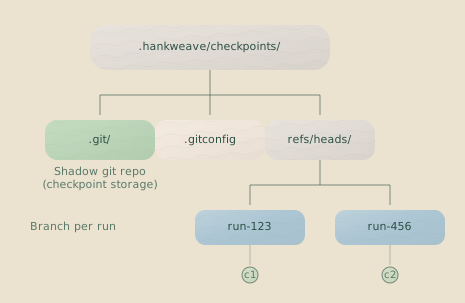
Each run gets its own branch (run-{runId}). Commits are named using the checkpoint type, codon ID, and the codon’s description from hank.json:
completed:generate#0 [run:1736...] Generate schema
error:validate#1 [run:1736...] Validate schema
See Checkpoints for details on rollback and recovery.
sentinels/
Sentinels write their outputs here. Conversational sentinels also persist their history here to maintain context between triggers.
outputs/{sentinelId}/ contains files produced by sentinels:
outputs/
└── narrator/
    ├── narrator-observe#0-1736000001000.md
    ├── narrator-generate#0-1736000002000.md
    └── narrator-validate#1-1736000003000.md
The naming format is {id}-{codonId}-{timestamp}.{ext}, where {id} is the sentinel ID.
.md: Text output.ndjson: Structured output (one JSON object per line)
history/{sentinelId}-codon-{codonId}.json stores conversational history:
{
  "turns": [
    {
      "role": "assistant",
      "content": "I notice the schema is missing validation...",
      "tokenCount": 150
    }
  ],
  "metadata": {
    "trimStrategy": "maxTurns",
    "maxTurns": 10
  }
}
This state persists between triggers, enabling sentinels that remember conversational context.
File Formats Summary
| File | Format | Description |
|---|---|---|
state.json | JSON | Run history, codon executions, costs, checkpoints |
execution-meta.json | JSON | Execution environment metadata |
runtime.lock | JSON | Server process info, heartbeat, and port |
archive-manifest.json | JSON | Tracks all files archived via archiveOnSuccess |
events.jsonl | JSONL | Append-only event journal |
websocket.log | JSONL | WebSocket traffic log |
server.log | Plain text | Human-readable server logs |
*-claude.log | JSONL | Agent conversation logs |
| Sentinel outputs | .md, .ndjson | Sentinel LLM outputs |
| Sentinel history | JSON | Conversational sentinel state |
File Watching and Tracked Files
Instead of constantly watching the filesystem, which is inefficient, Hankweave detects file changes on demand. A scan is triggered after a tool call that could modify the filesystem, such as write_file or a shell command. Hankweave then scans the checkpointedFiles patterns to see what changed.
The UnifiedFileResolver class handles all file pattern matching and respects the following rules:
- It honors
.gitignorefiles at all levels. - It always ignores
.git/andread_only_data_source/. - It supports standard glob patterns (
**/*.ts,src/**/*). - It caches ignore rules for performance.
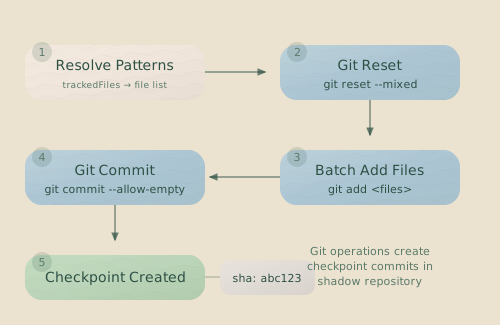
Patterns accumulate across codons. If codon 1 has checkpointedFiles: ["*.ts"] and codon 2 has checkpointedFiles: ["*.md"], the checkpoint after codon 2 will include changes to both TypeScript and Markdown files.
Common Inspection Tasks
Here’s how to use this file structure to answer common questions.
Find the latest execution for your data
ls -lt ~/.hankweave-executions/ | head -5The most recently modified execution directory will be at the top.
Check if a server is running
cat /path/to/execution/.hankweave/runtime.lockIf the lastHeartbeat is recent and the pid corresponds to a running process, a server is active.
View an agent’s conversation
# Pretty-print the agent log with jq
cat /path/to/execution/.hankweave/runs/RUN_ID/CODON_ID-claude.log | jq .
For programmatic access, parse the JSONL file:
import { readFileSync } from "fs";

const logPath = ".hankweave/runs/run-123/observe#0-claude.log";
const log = readFileSync(logPath, "utf-8");
const messages = log
  .split("\n")
  .filter(Boolean)
  .map((line) => JSON.parse(line));

// Find all tool calls made by the assistant
const toolCalls = messages
  .filter((m) => m.type === "assistant")
  .flatMap((m) => m.content?.filter((c) => c.type === "tool_use") || []);
Compare checkpoint states
# Navigate to the execution directory
cd /path/to/execution

# Temporarily point git commands to the internal .hankweave repo.
# This avoids interfering with any git repo in your own data.
export GIT_DIR=.hankweave/checkpoints/.hankweavecheckpoints
export GIT_WORK_TREE=agentRoot

# See all checkpoints as a commit log
git log --oneline

# Compare the filesystem state between two checkpoints
git diff <commit-hash-1> <commit-hash-2>

# See exactly what changed in a single checkpoint
git show <commit-hash>
Analyze WebSocket traffic
import { WebSocketLogReader } from "hankweave/websocket-log-reader";

const reader = new WebSocketLogReader(".hankweave/logs/websocket.log");
await reader.readLog();

// Get statistics
const stats = reader.getStatistics();
console.log(`Total messages: ${stats.totalEntries}`);
console.log(`Message types:`, stats.messageTypes);

// Filter messages for a specific codon
const codonMessages = reader.getCodonMessages("generate#0");
Related Pages
- State File Reference — Deep dive into
state.jsonstructure - Event Journal — Understanding the persistent event stream
- Checkpoints — How git-based checkpointing works
- CLI Reference — Command-line options like
--executionand--copy - Debugging Guide — Using these files to diagnose issues